




Using your PLAY Account
This is a quick reference guide for City of Whitehorse’ PLAY recreation registrations, memberships, bookings and account management.

For easy viewing and full access, log into your PLAY Account. Alternatively, you may select one of the buttons below. You will be required to log into your account for any registrations or transactions.
- Visit whitehorse.ca/play
- Click on ‘My Play Account’ (takes you to new software page)
- Login to your account with your email and password
*Important -If you are locked out of your account, from too many log in attempts, email [email protected].
- Visit whitehorse.ca/play
- Click on ‘My Play Account’ (takes you to new software page)
- Click on ‘Signup’ at the top of the page
- Complete all fields with current information. The primary owner must register first. Family members can be added once your account has been activated.
- Once all fields are complete, click the Submit button.
*Important – An email will be sent to the email address provided, with your username and temporary password.
- After clicking the Submit button, you’ll be taken to your new online account.
- Click on the ‘Manage Login’ button at the top of the screen and enter the temporary password emailed to you, then enter a NEW password.*
- Click on ‘Add Family Member’ to add additional members to your account.
*Important – Passwords must include the following: 8 characters long, 1 upper case letter, 1 lower case letter, 1 number, 1 special character.

- Visit whitehorse.ca/play
- Click on ‘My Play Account’ (takes you to new software page)
- Click on ‘Forgot password?’
- Enter your username (email address)
- If you have an active account you will receive an email with a temporary password
*Important – If you don’t receive the temporary password email and know you have an account email [email protected]. Your account may not be active or the email address is spelled incorrectly
- Log in to your PLAY account
- Click on ‘My Info’ to go to Client List
- Click on ‘Add Family Member’
*Important – only the primary account holder in a family account can see all family members.
- Log in to your PLAY account
- Click on ‘My Info’ to go to Client List
- If you are part of a family click on the family member you want to update
- Click on ‘Edit’
You can update your address, email, phone number, medical notes, and emergency contacts. For any other account changes email [email protected].
*Important: Family account – you will need to update each family member. Its important to ensure all family members have an active email address that is monitored by you.
- Log in to your PLAY account
- Click on ‘My Info’ to go to Client List and select yourself
- Scroll down to ‘Finance Info’
- Click on ‘New’ and enter your new payment information
- Click ‘Save’
*Important – Updating your payment method does not automatically update if you have any scheduled payments. Email [email protected].
- Log in to your PLAY account
- Click on ‘My Info’ to go to Client List and select yourself
- See your account credit
- Credits show up in green labeled ‘Shared credit’
- Balance owing shows up in red labeled ‘Past due’
*Important – If you have a shared credit anyone if you family can apply this to future payments.
- Log in to your PLAY account
- Click on ‘My Info’ to go to Client List and select yourself
- Click on ‘Invoices’
- Use the filters to find your receipt
- Select an invoice then click on ‘Receipt’
- Print your email your receipt
*Important – When using a phone the filter shows up as a purple funnel you will need to click.
- Log in to your PLAY account
- Click on ‘My Info’ to go to Client List and select yourself
- Click on ‘Invoices’
- Select the invoice you are owing
- Click on ‘Make Payment’
- Log in to your PLAY account
- Click on ‘My Info’ to go to Client List and select yourself
- Scroll down to ‘Documents’
- Click on ‘New’ and attached file.
- Click ‘Save’
- Log in to your PLAY account
- Click on ‘My Info’ to go to Client List and select yourself
- Scroll down to ‘Schedules’
- Click on the family members you would like to see.
- Viewing on a desktop, tablet or laptop allows you to see a full month calendar view.Viewing on a desktop, tablet or laptop allows you to see a full month calendar view.
*Important – What is in your calendar is what is booked. Look for blank days in patterns which are your no lesson days.
- Search for an Activity
- Click the blue ‘Book Now’ button to register
- If the course is full add yourself to the waitlist by clicking on the blue ‘Waitlist’ button
- Select who in your family to register
- Follow the prompts to add a course to your cart and click “Checkout”
- Enter payment. Once you have clicked ‘process payment’, your transaction is in process.
*Important – Be patient and wait for the transaction to complete. If you click again, refresh or press the back tab, you may be charged multiple times, loose your transaction or cause an error in the system.
We know you want to have your best chance at getting into our popular programs, however, when you log in to multiple devices or tabs and attempt to register the same person from multiple devices this often causes errors in the system.
All course registration will be done by lottery.
Lottery Registration Period: August 4-5
- Lottery Register for any course you are interested in during this time.
- Do not register into any lotteries you do not want to win.
Prioritization: All Aquatics courses and Summer Stew use priorities. Rank your choices carefully. If you win multiple lotteries, you will be removed from any lower ranking course.
Lottery Results: August 6
You will receive an email from [email protected] with one of the following subjects:
- “Pending Confirmation Details” — you have a pending spot.
- “You Have Been Added to a Waitlist” — you are on the waitlist.
You can also check results under “Attendance” in your PLAY account.
Confirmation of Pending Spots begins on August 6 at 12 pm.
Please note: Email confirmations will arrive in your inbox as early as 9 am but courses will remain closed for registration until 12 pm.
- If you receive a pending spot, you must confirm and pay within 24 hours (online, in person, or by phone) or you will be automatically withdrawn.
- After lotteries are processed*, remaining spots and waitlists will open for general registration.
- Once a spot is confirmed, withdrawal fees apply.
Why Courses May Appear to Have Open Spots When They’re Actually Full
Sometimes our registration system may show that a course has available spots, but when you try to register, it says the course is full. This happens because the system is holding spots for participants who have received a pending confirmation and are within their 24-hour window to complete registration. Until that window expires for all participants offered a pending spot, those spots are temporarily reserved. It can take a day or two for these pending registrations to clear, so we recommend checking back regularly in case spots open up.
- When you register for multiple courses of the same type (i.e., Swimmer 2 or Purple Stew), you’ll need to rank your choices from first to last — your first choice being the one you most want.
- When the lottery runs, if you “win” spots in more than one course, you’ll be removed from lower-ranked options and keep only your highest-ranked course. This helps ensure everyone gets a fair chance at their preferred class.
I am text block. Click edit button to change this text. Lorem ipsum dolor sit amet, consectetur adipiscing elit. Ut elit tellus, luctus nec ullamcorper mattis, pulvinar dapibus leo.
I am text block. Click edit button to change this text. Lorem ipsum dolor sit amet, consectetur adipiscing elit. Ut elit tellus, luctus nec ullamcorper mattis, pulvinar dapibus leo.
I am text block. Click edit button to change this text. Lorem ipsum dolor sit amet, consectetur adipiscing elit. Ut elit tellus, luctus nec ullamcorper mattis, pulvinar dapibus leo.
- Log in to your PLAY account
- Click on ‘My Info’ to go to Client List and select yourself
- Scroll down to ‘Schedules’
- Click on the family members you would like to see.
- Viewing on a desktop, tablet or laptop allows you to see a full month calendar view.Viewing on a desktop, tablet or laptop allows you to see a full month calendar view.
*Important – What is in your calendar is what is booked. Look for blank days in patterns which are your no lesson days.
IMPORTANT NOTICES
Will remind you of upcoming closures and events that may affect the drop in schedule
CALENDARS
There are 4 calendars to choose from;
- Aquatics Drop-In
- Arenas Drop-In
- Fitness Drop-In
- Recreation Drop-In
Once you have clicked on a calendar, you will see events for that area for today.
When you hover over the information icon, you will see information about the drop-in
To navigate back to a different calendar, click the back button.
FILTERS
- To open filter on mobile phone, click the blue icon on the top right.
- SERVICE is the drop-in activity name.
- If you are filtering by service, always include ‘booked event’ and ‘maintenance’ as well as the activity you are searching for so that you can see when there are closures or events that may affect the drop in schedule.
- DATE
- To look at a date in the future, filter the end date first.
- DAY OF THE WEEK
- AGE
A PLAY account is required to preregister for fitness classes
- Go to the online drop-in schedule.
- Click on Fitness Drop in.
- Find the class you want to register for and click the blue “Book Now” button (available 26 hours prior to class start).
- You will be taken to the class description page where you again need to click “Book Now”.
- Log into your account.
- To use your membership benefits, select “membership drop in fee” at no cost.
- Non-members and 10 admission pass holders must pay the daily admission fee*.
- Select ‘Process’ to complete your registration.
- Once registered you will receive a confirmation email.
*Holders of 10 admission passes and buddy passes are not eligible to preregister online the day prior. Class registration for these passes is available in-person or by phone on the day of the class.
- Cancellation is free, up to 1 hour before the start of class without penalty.
- Cancellations can be made online, in-person or by calling 867-667-4FUN(4386).
- To cancel your fitness class reservation online, Login to PLAY, under ‘My Info’, view the Schedule section of your client profile. Switch from ‘Calendar View’ to ‘List View’ and select ‘Withdrawal’.
- Log in to your PLAY account
- Click on ‘CGC Membership’ from the menu
- Select your membership
- Select who in your family is purchasing it and pay
*Important: Family, student and disability memberships must be purchased in person at the Canada Games Centre.
- Log in to your PLAY account
- Click on ‘My Info’ to go to Client List and select yourself
- See your memberships details and expiry dates.
*Important – 10 Admissions passes are valid for 2-years.
I am text block. Click edit button to change this text. Lorem ipsum dolor sit amet, consectetur adipiscing elit. Ut elit tellus, luctus nec ullamcorper mattis, pulvinar dapibus leo.
I am text block. Click edit button to change this text. Lorem ipsum dolor sit amet, consectetur adipiscing elit. Ut elit tellus, luctus nec ullamcorper mattis, pulvinar dapibus leo.
Learn to:
- Create your account
- Set your permanent password
Learn to:
- View and purchase memberships
- View and purchase admission passes
Learn to:
- Add family members
- Save financial information
- View memberships
- View activity registrations
- View account balances, credits & statements
- View receipts
- Add documents
Learn to:
- View facility information including address, fees, and description
- Search and view facility availability
Learn to:
- Search, view and register for activities
- Check out
- View activity registrations
- Export a calendar for all of your family activities or add to your electronic calendar
- Manage online withdrawals/ & request refunds
Learn to:
- Search, view and register for activities
- Check out
- View activity registrations
Learn to:
- Search, view and register for a fitness class
- Check out
- View activity registrations
- Export a calendar for all of your family activities or add to your electronic calendar
- Manage online withdrawals/ & request refunds
or
Learn to:
- Create your account
- Set your permanent password
Learn to:
- View and purchase memberships
- View and purchase admission passes
Learn to:
- Add family members
- Save financial information
- View memberships
- View activity registrations
- View account balances, credits & statements
- View receipts
- Add documents
Learn to:
- View facility information including address, fees, and description
- Search and view facility availability
or
Parks & Recreation
-
How do I advertise at the Canada Games Centre or Takhini Arena?
View sponsorship and advertising opportunities
- How do I book a City Facility?
-
How do I find a playground?
Click here to see our playgrounds listing complete with addresses, pictures and more information!
-
How do I find a trail?
Click here for the Trails web page!
-
How do I find out about closures or cancellations before coming to the CGC?
The CGC regularly hosts events that affect our drop-in schedule. View out online schedule for the most up-to-date information.
-
How do I navigate the online drop-in schedule?
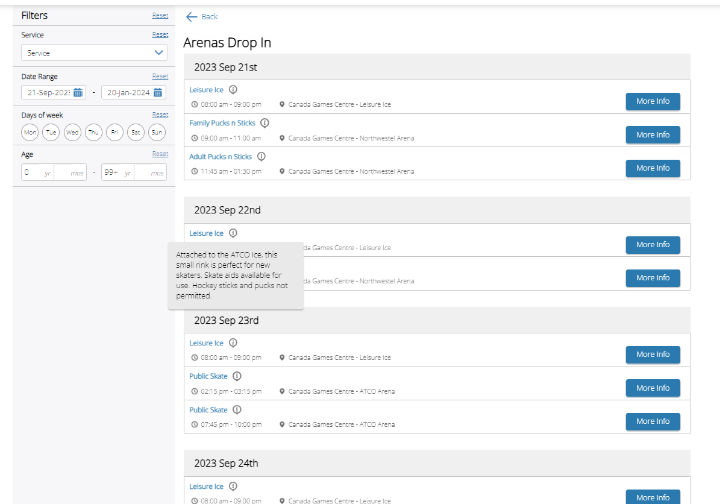
IMPORTANT NOTICES
Will remind you of upcoming closures and events that may affect the drop in schedule
CALENDARS
There are 4 calendars to choose from;
- Aquatics Drop-In
- Arenas Drop-In
- Fitness Drop-In
- Recreation Drop-In
Once you have clicked on a calendar, you will see events for that area for today.
When you hover over the information icon, you will see information about the drop-in
To navigate back to a different calendar, click the back button.
FILTERS
- To open filter on mobile phone, click the blue icon on the top right.
- SERVICE is the drop-in activity name.
- If you are filtering by service, always include ‘booked event’ and ‘maintenance’ as well as the activity you are searching for so that you can see when there are closures or events that may affect the drop in schedule.
- DATE
- To look at a date in the future, filter the end date first.
- DAY OF THE WEEK
- AGE
-
How do I register for a Recreation program?
You have the choice of three ways to register for a program:
- Online at Whitehorse.ca/play (click to learn more)
- By phone at 667-4FUN (4386)
- In person at the Canada Games Centre
-
What do I do if I’ve lost something at the CGC?
The CGC is not responsible for any lost or stolen items; however, if something is returned we will place it in the lost and found for up to 48 hours. Contact us ASAP and we’ll do our best to locate your item. Valuable items found are locked in a safe and held for a longer period of time. In order to help prevent losing items, we suggest that you leave all valuable items at home.
-
What is your withdraw and refund policy for recreation programs?
All courses are non refundable within 7 days of course start date.
Courses withdrawn prior to 7 days are subject to a $30.00 withdrawal fee.
If the program fee is less than $30, only the program fee is charged and no balance is refunded
If the City of Whitehorse cancels a program, participants will be notified and a full refund will be credited to your account.
The City of Whitehorse uses an online software system (XPLOR) that allows you to:
- Search and register for courses and events
- Pre-register for fitness drop-in activities
- Discover and book facility spaces
- Book campground spots
- Purchase memberships and admission passes to the Canada Games Centre
- Manage your account
- Request refunds online
Learn how to sign up and register below.
On This Page
2. Accessing Your PLAY account
3. How To’s & Video Tutorials
4. Frequently Asked Questions
Toggle content goes here, click edit button to change this text.